
PDFs, essential for professional document sharing, sometimes require adjustments even after signing. Browser-based platforms like Sejda PDF offer versatile editing solutions, eliminating complex software needs.
Why Edit a Signed PDF? Common Scenarios
Despite a signature’s finality, post-signature edits are surprisingly common. Often, individuals need to complete forms on their Macs – loan applications, return requests, job submissions – requiring PDF completion. Simple errors, like typos or missing information, necessitate changes even after signing.

Sometimes, additional details emerge post-signature, demanding document updates. Perhaps a clause needs clarification, or supplementary information must be included. Businesses frequently encounter scenarios where signed contracts require minor amendments. While ideally addressed before signing, practical situations often demand adjustments afterward. Utilizing tools like Sejda PDF simplifies these post-signature modifications, ensuring document accuracy and completeness without re-signing entirely.
Legal Considerations & Risks
Editing a signed PDF introduces legal complexities. Altering signed documents without proper protocols can invalidate the agreement or raise concerns about authenticity. Significant changes may be construed as forgery, potentially leading to legal repercussions.
It’s crucial to understand that substantial modifications generally require a new signature or an addendum, clearly outlining the changes and acknowledged by all parties. Minor corrections, like fixing typos, might be permissible, but transparency is key. Always retain a copy of the original, unaltered document. Utilizing secure PDF editors and documenting all edits are vital steps to mitigate risks and maintain legal defensibility. Consulting legal counsel is advisable for complex alterations.

Methods for Editing Signed PDFs
Various methods exist, from browser-based tools like Sejda PDF to premium features within Adobe Acrobat Reader, and diverse online cloud-based PDF editing solutions.
Using Sejda PDF Editor
Sejda PDF stands out as a comprehensive, browser-based platform, expertly designed for a broad spectrum of document manipulation tasks. Functioning as a remarkably versatile sejda pdf editor, it cleverly eliminates the often-complex requirements of installing and managing dedicated desktop software. This accessibility makes it an ideal choice for quick edits and modifications to signed PDFs.
The platform offers a user-friendly interface, allowing users to easily add text, images, or shapes directly onto the signed document. It also facilitates the removal or covering of existing text, ensuring sensitive information remains protected. Sejda PDF’s cloud-based nature means no software downloads are necessary, streamlining the editing process and providing access from any device with an internet connection. It’s a powerful, convenient solution for post-signature PDF adjustments.
Adobe Acrobat Reader: Edit PDF App (Premium Feature)
While widely known as a PDF viewer, the ability to directly edit PDF documents using the official Adobe Acrobat Reader is, in fact, an exclusive feature reserved for subscribers to their Acrobat Premium plan. This subscription service comes with a cost of $10 per month, or a more substantial $70 annually.
It’s crucial to understand that there isn’t a workaround to access these editing capabilities without committing to the paid subscription. The free version of Acrobat Reader primarily focuses on viewing, signing, and commenting on PDFs, lacking the tools needed for substantial post-signature modifications. For those requiring frequent or advanced editing, the Premium feature provides a robust, integrated solution within the Adobe ecosystem.
Online PDF Editors ౼ Cloud-Based Solutions
Numerous free, cloud-based PDF editor tools are readily available, functioning directly within a web browser – eliminating the need for software downloads or installations. These platforms allow users to sign up and begin editing PDFs quickly and conveniently. They present a viable alternative for those needing occasional post-signature adjustments without the commitment of paid software.
These editors often support a range of editing tasks, from adding text and shapes to filling forms and even applying signatures. However, it’s important to be mindful of security and privacy when uploading sensitive, signed documents to these cloud services. Always review the provider’s terms and conditions before use, ensuring data protection measures are in place.

Specific Editing Tasks & How to Approach Them
Post-signature edits range from simple text additions to covering existing content or inserting visuals. Careful consideration is vital when modifying signed documents.
Adding Text to a Signed PDF
Often, post-signature PDF edits involve adding clarifying information, notes, or corrections. Utilizing tools like Sejda PDF Editor or Adobe Acrobat Reader’s premium features allows for precise text insertion. When adding text, consider the document’s existing layout and choose a font that closely matches the original for visual consistency.
Carefully position the new text to avoid obscuring previously signed areas or critical information. Many PDF editors offer text boxes or direct text editing capabilities. Remember that altering a signed document, even with additions, can have legal implications, so proceed with caution and understand the potential risks. Always save a copy of the original signed document before making any changes.
Removing or Covering Existing Text
Sometimes, editing a signed PDF necessitates removing or concealing pre-existing text. Direct deletion isn’t always possible or advisable due to signature validation concerns. Instead, utilize tools offering redaction or covering features – essentially placing a black bar or colored shape over the unwanted content.
Sejda PDF Editor and Adobe Acrobat Reader (premium) both provide these functionalities. Ensure the covering element completely obscures the text to prevent it from being readable. Be mindful of legal ramifications; completely removing text might invalidate the document. Covering is generally a safer approach, indicating intentional alteration rather than falsification. Always retain a copy of the original before making any modifications.
Inserting Images or Shapes
Enhancing a signed PDF often involves adding visual elements like images or shapes. Most PDF editors, including Sejda PDF and Adobe Acrobat Reader (with a premium subscription), facilitate this process. You can upload images directly from your computer or insert them from a URL. Shapes, such as arrows, rectangles, or circles, are useful for highlighting specific sections or adding annotations.
When inserting elements, consider their size and placement to avoid obscuring crucial information or the signature itself. Ensure the added visuals are relevant and contribute to the document’s clarity. Remember to save a copy of the original PDF before making any alterations, maintaining a pristine version for record-keeping purposes.

Editing PDFs on Mac
Mac users frequently need to complete PDFs, whether for loan applications, returns, requests, or job submissions. Preview offers basic edits, while dedicated editors provide advanced features.

Utilizing Preview for Basic Edits
Apple’s Preview, pre-installed on every Mac, provides surprisingly capable PDF editing features for simple post-signature adjustments. While not a dedicated PDF editor, it’s often sufficient for minor corrections or additions. You can easily add text boxes, shapes, and signatures directly onto the signed document.
Preview allows for highlighting and underlining existing text, and you can even redact sensitive information by covering it with a solid shape. It’s a convenient option for quick fixes without needing to download or purchase additional software. However, for complex edits or extensive modifications, Preview’s limitations become apparent, and a more robust PDF editor is recommended. It’s ideal for filling in forms or making small, straightforward changes.
Third-Party PDF Editors for Mac
For Mac users needing more advanced post-signature PDF editing capabilities, several third-party editors offer comprehensive solutions. Adobe Acrobat Reader’s “Edit PDF” app, while powerful, requires a premium subscription – costing $10 monthly or $70 annually. Alternatives like Sejda PDF Editor, accessible through a web browser, provide a versatile platform without desktop installation.
These editors typically allow for extensive text manipulation, image insertion, page organization, and form filling. They often include features like OCR (Optical Character Recognition) for editing scanned documents. Choosing the right editor depends on your specific needs and budget, but they all aim to provide a more robust experience than Preview for complex PDF adjustments.

Security & Privacy Concerns
Protecting signed documents is crucial; choose a secure PDF editor. Consider data encryption and privacy policies when selecting cloud-based or desktop solutions for editing.
Protecting Your Signed Document
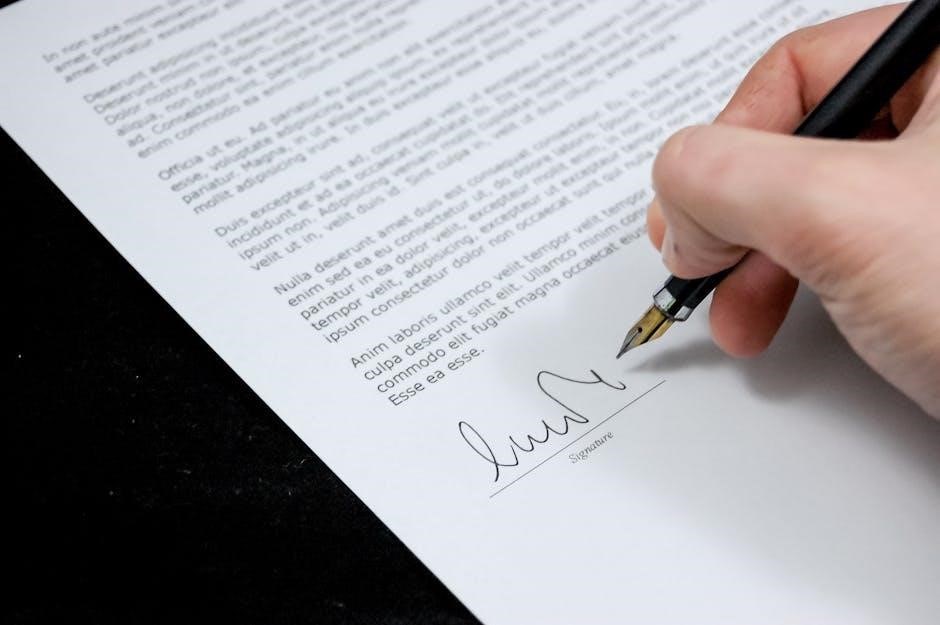
After signing a PDF, maintaining its integrity and security becomes paramount. Editing introduces potential vulnerabilities, so careful consideration is vital. Always work with reputable PDF editors that prioritize data encryption, both in transit and at rest. Before editing, create a backup copy of the original signed document to safeguard against accidental alterations or data loss.
Be mindful of the permissions you grant to any online PDF editor, reviewing their privacy policies to understand how your data is handled. Avoid editing sensitive documents on public or unsecured networks. When finished, consider password-protecting the edited PDF to restrict unauthorized access. Regularly scan your edited documents with antivirus software to detect and mitigate potential threats. Prioritizing these steps ensures your signed PDF remains secure and legally sound.
Choosing a Secure PDF Editor
Selecting a secure PDF editor is crucial when modifying signed documents. Prioritize platforms with robust security features, including SSL encryption for data transmission and adherence to industry standards like GDPR. Look for editors that don’t retain copies of your documents on their servers after editing – cloud-based solutions vary significantly in this regard.
Reputable options, like Adobe Acrobat (with a premium subscription) and Sejda PDF, offer varying levels of security. Research user reviews and privacy policies carefully. Avoid free, unverified online editors, as they may pose risks to your data. Consider whether the editor offers features like password protection and digital signatures to further secure your edited PDF. A trustworthy editor balances functionality with a commitment to protecting your sensitive information.

Alternatives to Direct Editing
Instead of directly altering a signed PDF, consider creating a new version with corrections or utilizing annotation tools to highlight necessary changes non-destructively.
Creating a New PDF with Corrections
When direct editing of a signed PDF poses risks or isn’t feasible, generating a fresh PDF incorporating the required changes presents a secure alternative. This approach avoids modifying the original, legally signed document, preserving its integrity. You can effectively recreate the document, adding text, images, or corrections as needed.
This method is particularly useful when the changes are substantial or when maintaining a clear audit trail is crucial. By creating a new PDF, you retain the original signed version for record-keeping and demonstrate transparency in the amendment process. Utilizing tools to replicate the original formatting ensures a professional and consistent appearance, minimizing discrepancies and maintaining document clarity. This strategy offers a safe and reliable way to address post-signature modifications.
Using Annotation Tools
Instead of directly altering a signed PDF, annotation tools offer a non-destructive method for indicating necessary changes. These tools allow you to add text boxes, sticky notes, highlights, and shapes onto the existing document without modifying the underlying content. This approach preserves the original signature’s validity while clearly communicating required adjustments.
Annotation is ideal for collaborative review processes, enabling multiple parties to provide feedback without risking the integrity of the signed document. It’s a particularly useful technique when the changes are suggestions or require further clarification. Many PDF readers and editors include robust annotation features, making it a readily available solution. This method maintains a clear record of all proposed modifications alongside the original signed version.

Future Trends in PDF Editing
AI-powered editing and enhanced security features are poised to revolutionize PDF manipulation, offering smarter, safer ways to adjust documents post-signature efficiently.
AI-Powered PDF Editing
The future of PDF editing is rapidly converging with artificial intelligence. Imagine a scenario where AI automatically identifies and corrects errors within a signed document, or intelligently restructures content without compromising the original formatting. This isn’t science fiction; it’s the direction the technology is heading.
AI can streamline tasks like form filling, data extraction, and even translation directly within the PDF. More impressively, AI could potentially understand the intent behind edits, suggesting improvements or flagging potential legal issues. This means fewer manual adjustments and a reduced risk of errors.
Furthermore, AI-driven tools will likely offer more sophisticated search capabilities, allowing users to quickly locate specific information within complex, signed PDFs. These advancements promise to make post-signature editing not just possible, but remarkably efficient and accurate.
Enhanced Security Features
As PDF editing capabilities evolve, so too must the security measures protecting sensitive, signed documents. Future PDF editors will likely integrate more robust authentication protocols, ensuring only authorized personnel can make changes post-signature. Expect advanced encryption standards and detailed audit trails, meticulously recording every edit made to the document.
Blockchain technology could play a role, providing an immutable record of changes and verifying document integrity. Furthermore, AI-powered threat detection will proactively identify and neutralize malicious attempts to tamper with signed PDFs.
These enhancements are crucial, as editing a signed document inherently introduces risk. Stronger security features will build trust and ensure the legal validity of amended PDFs, safeguarding both the document’s content and the signer’s intent.